Documents, PDFs and Excel with AI
Summarising contracts, extracting data from invoices, analysing financial statements, writing formulas and charts. Practical methods to work on documents without losing accuracy.
 Mattia PanattaUpdated 15 October 202611 minBeginner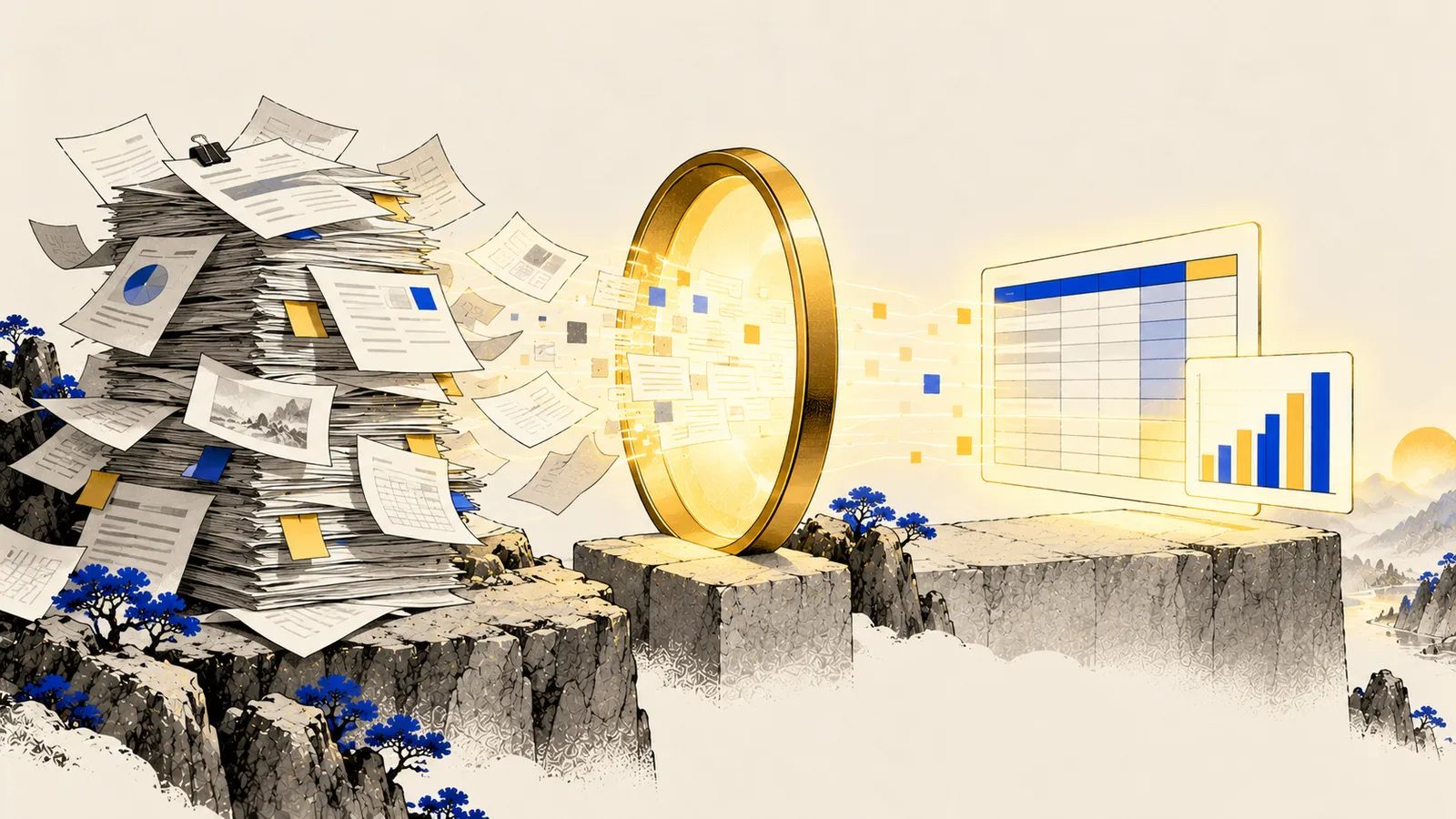
In short
- Assistants read PDFs, Word, Excel, images and scans. Top models handle documents hundreds of pages long.
- For numbers, always have the AI run code: it actually computes instead of “estimating”.
- Ask for the page number of every extracted figure and check those you’ll use.
- For recurring documents (invoices, bank statements), AI pays off most inside an automation with human review.
Summarising without losing what matters
A generic summary (“summarise this PDF”) yields a generic text. A useful summary starts from what you need to do with it.
I am [the supplier / the customer] in this contract. Read it and prepare:
- Subject, duration, renewal and termination (with clause and page).
- Fees, payment terms, penalties.
- The 5 clauses least favourable to me, explained in plain words.
- What’s missing compared to a standard contract of this type.
- Questions to ask the other party before signing. If a point isn’t in the text, write “not provided”. This does not replace a lawyer’s advice.
For very long documents (financial statements, appraisals, manuals) work in two steps: first ask for a map (“list the sections with pages and a one-line summary each”), then work section by section. You avoid the “lost in the middle” problem from the context and memory guide.
Extracting data: invoices, receipts, tables
AI is excellent at turning messy documents into tidy tables: PDF invoices, photographed receipts, bank statements, tables inside a report.
From the attached documents extract a table with these columns: date, document number, supplier, VAT number, net amount, VAT rate, VAT, total, short description. One row per document. If a value is unreadable write “UNREADABLE”, don’t estimate it. Finally check that net + VAT = total for every row and flag rows that don’t match. Export to Excel.
The last line is key: having the AI check data consistency catches most reading errors.
Personal and confidential data
Invoices, payslips and bank statements contain personal data. Use business or enterprise plans (which don’t train models on your data), or turn off training use in your personal plan’s settings. Details in the privacy and security guide.
Excel and numbers: compute, don’t estimate
A language model doing long maths “in its head” makes mistakes, given how it works (see the guide on how an LLM works). But today ChatGPT, Claude and Gemini can write and run code on your files: they read the spreadsheet, calculate precisely, make charts and return a new file.
How to ask:
- “Use data analysis / run code to calculate…”
- “Show me the code or formula you used.”
- “Verify one total in two different ways.”
Attached is the 2025 sales export (one row per invoice). Run code to:
- total by month and by customer, with change vs the previous year if available;
- the 10 largest customers and their share of the total;
- average collection time per customer (payment date minus invoice date);
- a bar chart of monthly revenue. Tell me how many rows you read and whether any rows have missing or anomalous data. Return an Excel file with one sheet per analysis.
Formulas: AI as your Excel-savvy colleague
For formulas AI is an unbeatable tutor, provided you tell it how the sheet is laid out and which Excel language version you use (function names and separators change between languages: the Italian version uses SOMMA.SE for SUMIF and semicolons as separators).
Sheet “Invoices”: column A date, B customer, C amount, D status (“paid” / “outstanding”). English Excel. In F2 I need the total outstanding for the customer named in E2, only for invoices older than 60 days. Give me the formula, explain it piece by piece and tell me how to test it.
Creating documents and presentations
Assistants no longer just write text: they create real files.
- Claude with Docs and Slides (included on the free plan since October 2026) and, on paid plans, Dashboards in beta.
- ChatGPT creates documents, sheets and decks and, with its extensions for Excel, Word, PowerPoint and Google Sheets, works directly inside your files.
- Gamma generates presentations and visual documents from an outline, exporting to PDF and PowerPoint.
The best method for decks: first ask for the outline (title and key message for each slide), fix it, and only then generate the slides. Fixing 10 lines is easier than redoing 10 slides.
Reading scanned documents and photos
Modern models read scans and photos well too (built-in OCR), including tables and clear handwriting. For important documents:
- photograph straight, in good light, one page per photo;
- ask to transcribe first and analyse after;
- compare the transcription with the original on key numbers.
In practice
- Always say what you need to do with the document, not just “summarise”.
- Ask for page and clause for every figure and verify those you’ll use.
- For numbers: code execution, consistency checks, formula shown.
- Long documents: map first, then section by section.
- Sensitive data: the right plan and privacy settings checked.
- Repetitive work: move to an automation (next guide).
Sources
Informational content, current as of the date shown. Prices, models and rules change often: always check official sources. Written with the support of AI tools and reviewed by the author.